

Luma Video Generation API Integration Guide
As AI applications become more widespread, various AI programs have gradually become popular. AI has gradually penetrated every aspect of people's work and lives. The industries involved in AI are also becoming increasingly diverse, from initial writing, to medical care and education, and now to video.
Luma is a professional, high-quality video generation platform. Users only need to upload materials to automatically generate high-quality videos based on different styles and effects. This AI video generator was developed by team members from well-known technology companies, aiming to enable everyone to easily create outstanding videos without complex editing tools.
However, Luma officially does not provide an API. qiyaov provides a set of Luma APIs, simulating integration with the official Suno API, making it convenient and fast to generate the desired videos.
¶ Application and Usage
To use the Luma Videos Generation API, first go to the qiyaov Console to obtain your API Token and keep it for later use.

If you have not yet logged in or registered, you will be automatically redirected to the login page to register and log in. After completion, you will automatically return to the current page.
One API Token can call all platform services; there is no need to apply separately for each service. Your first application will include free credits for a free trial; when credits are insufficient, you can recharge your general balance in the console.
📘 Full documentation: Luma Videos Generation API →
¶ Basic Usage
For the video you want to generate, you can enter any text. For example, if I want to generate a video about astronauts traveling between space and a volcano, I can enter Astronauts shuttle from space to volcano, as shown below:
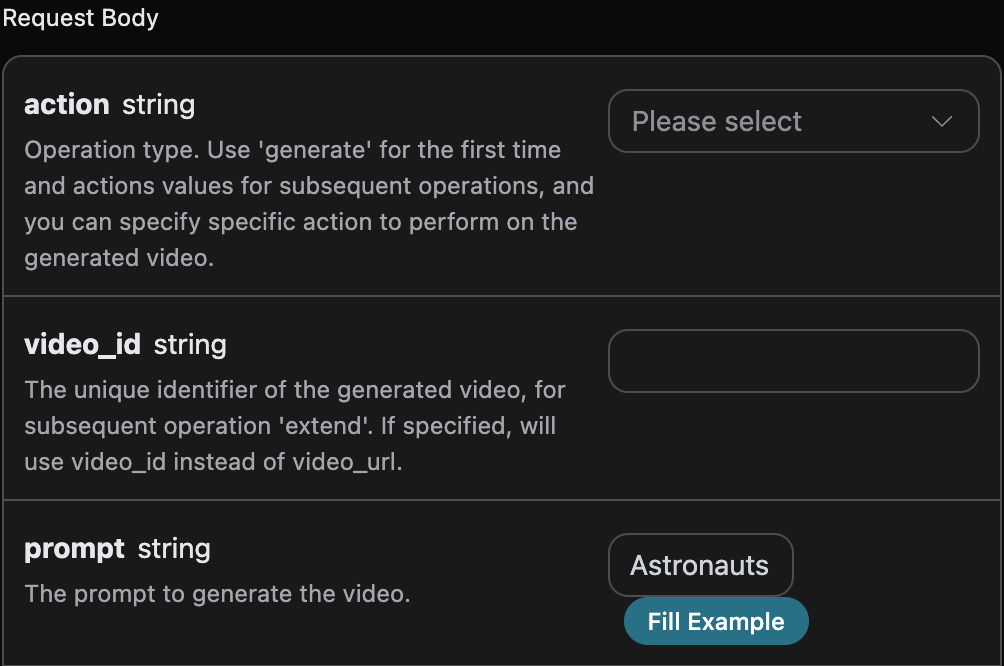
The generated code is as follows:
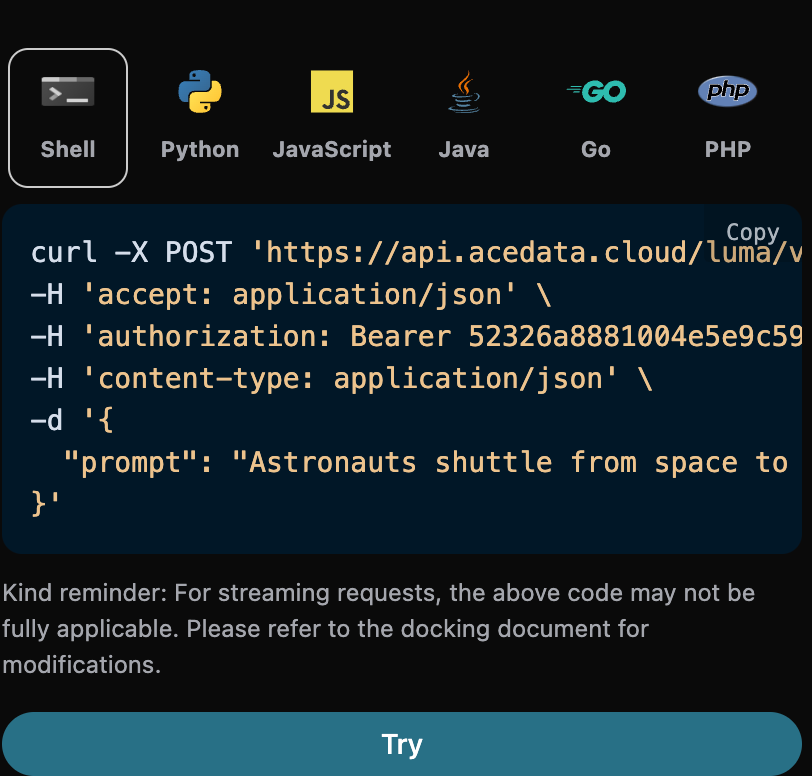
Main request parameters:
prompt: The prompt for generating the video.aspect_ratio: The video aspect ratio, default is 16:9.end_image_url: Optional, specifies the end frame.enhancement: Optional, clarity enhancement switch.loop: Whether to generate a looping video, default is false.timeout: Optional, timeout in seconds.callback_url: Asynchronous callback URL.async: Optional. When set totrue, the API immediately returnstask_id; there is no need to providecallback_url, and the result can then be obtained by polling through the corresponding task query API.
You can click the “Try” button to test the API directly. Wait 1–2 minutes, and the result is as follows:
{
  "success": true,
  "task_id": "e4018a99-1522-4f24-9330-62c2a9b50b59",
  "video_id": "155838f8-7f1e-44d8-b387-192f3b4b509d",
  "prompt": "Astronauts shuttle from space to volcano",
  "video_url": "https://cdn.acedata.cloud/assets/examples/gemini/04a043bd-6b23-4b4e-945c-ce48158c3eee-3a89912507c7.mp4",
  "video_height": 752,
  "video_width": 1360,
  "state": "completed",
  "thumbnail_url": "https://platform.cdn.acedata.cloud/luma/e4018a99-1522-4f24-9330-62c2a9b50b59.jpg",
  "thumbnail_width": 1360,
  "thumbnail_height": 752
}
You can see that at this point we have obtained the relevant information for this video, including the video ID, video link, video cover, and more.
The field descriptions are as follows:
- success: Whether generation was successful. If successful, it is
true; otherwise, it isfalse. - task_id: The unique ID of the video generation task here.
- video_id: The unique ID of the video produced by the video generation task here.
- prompt: The keywords of the video generation task here.
- video_url: The result video link of the video generation task here.
- video_height: The height of the generated video cover image.
- video_width: The width of the generated video cover image.
- state: The status of the video generation task here. If the task is completed, it is
completed. - thumbnail_url: The link to the generated video cover image.
- thumbnail_width: The width of the generated video cover image.
- thumbnail_height: The height of the generated video cover image.
¶ Generate with Custom Start and End Frames
If you want to generate a video through custom start and end frames, you can enter the image links for the start and end frames:
At this point, the video start frame start_image_url field can pass in the following image as the video start frame:

Next, if we want to customize the video generation based on the start and end frames and keywords, we can specify the following content:
- action: The behavior of the video generation task, usually normal generation
generateand extended generationextend, with the default beinggenerate. - start_image_url: Specifies the start frame of the generated video.
- end_image_url: Specifies the end frame of the generated video.
- prompt: The keyword content for generating the video.
The filling example is as follows:
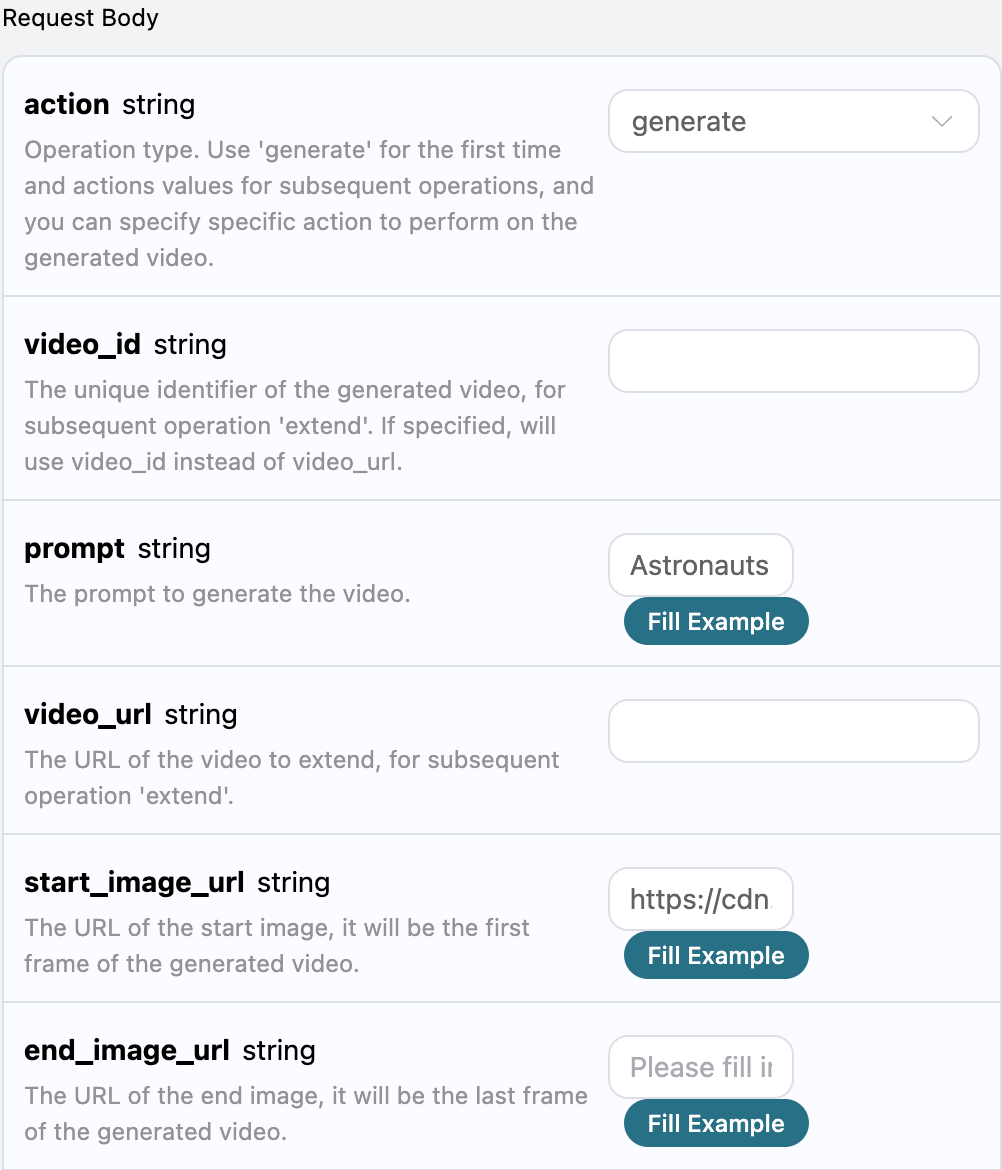
After filling it out, the following code is automatically generated:
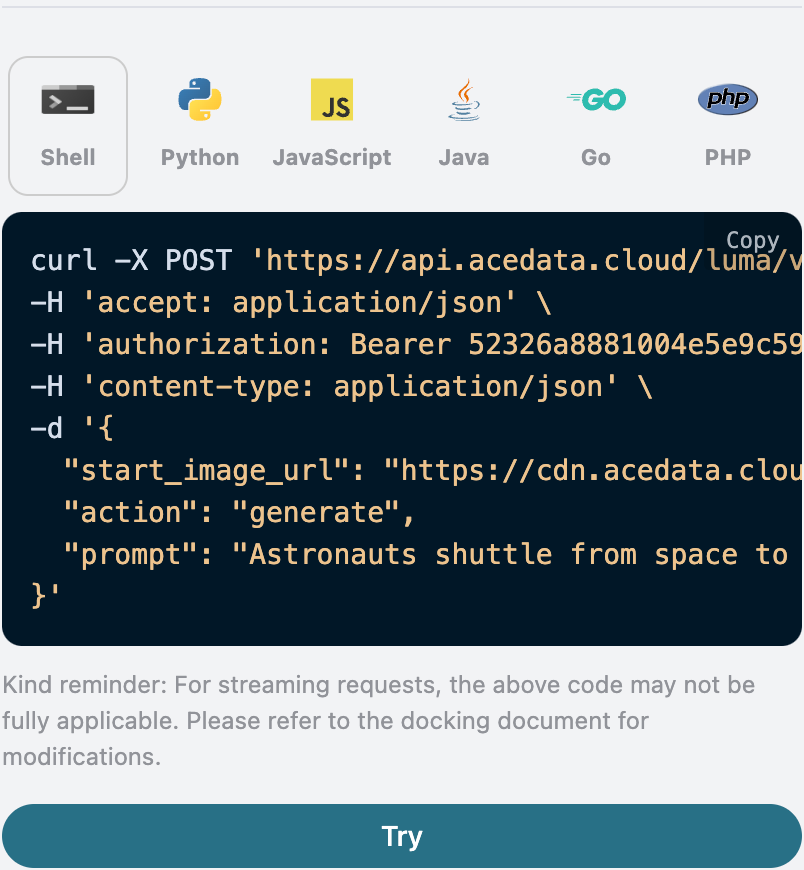
Corresponding code:
import requests

url = "https://api.qiyaov.com/luma/videos"

headers = {
    "accept": "application/json",
    "authorization": "Bearer {token}",
    "content-type": "application/json"
}

payload = {
    "start_image_url": "https://cdn.acedata.cloud/r9vsv9.png",
    "action": "generate",
    "prompt": "Astronauts shuttle from space to volcano"
}

response = requests.post(url, json=payload, headers=headers)
print(response.text)
The result obtained is as follows:
{
  "success": true,
  "task_id": "12a18694-fd4b-47e7-9c50-34f30862cff6",
  "video_id": "0105c090-03a5-425a-8026-523341cd575b",
  "prompt": "Astronauts shuttle from space to volcano",
  "video_url": "https://platform.cdn.acedata.cloud/luma/12a18694-fd4b-47e7-9c50-34f30862cff6.mp4",
  "video_height": 656,
  "video_width": 1552,
  "state": "completed",
  "thumbnail_url": "https://platform.cdn.acedata.cloud/luma/12a18694-fd4b-47e7-9c50-34f30862cff6.jpg",
  "thumbnail_width": 1552,
  "thumbnail_height": 656
}
The final result is similar to the one above. The generated video start frame includes the image we passed in. Of course, you can also pass in both the start and end frame image links to generate a video. You only need to add an end frame image on top of the above. The image information for the end frame is as follows:

The filling example is as follows:
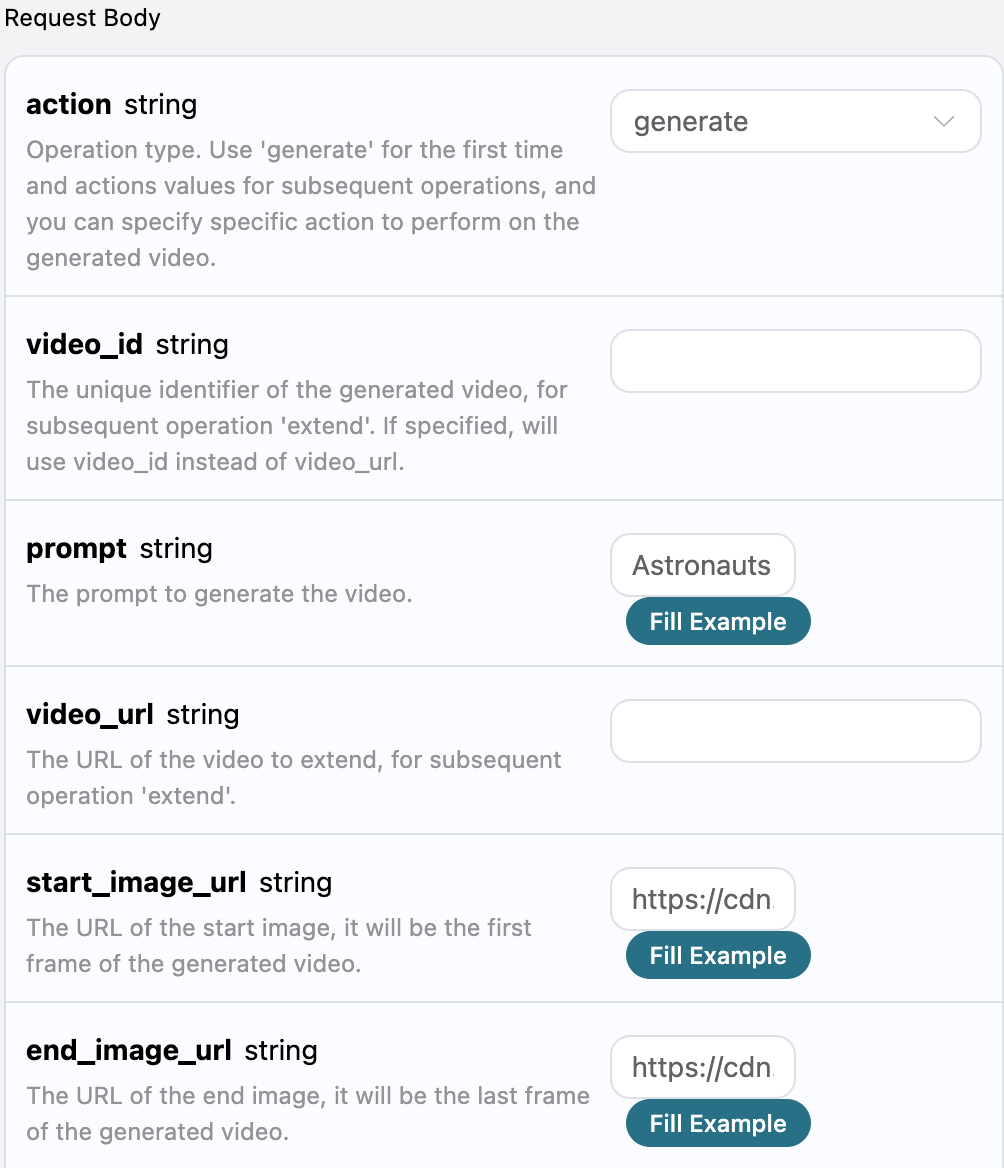
Finally, the following result is obtained:
{
  "success": true,
  "task_id": "d1cb723a-e554-4775-94a4-bb6ae8c7ea67",
  "video_id": "6bebd0d2-f793-472e-9326-38528a9273bb",
  "prompt": "Astronauts shuttle from space to volcano",
  "video_url": "https://platform.cdn.acedata.cloud/luma/d1cb723a-e554-4775-94a4-bb6ae8c7ea67.mp4",
  "video_height": 656,
  "video_width": 1552,
  "state": "completed",
  "thumbnail_url": "https://platform.cdn.acedata.cloud/luma/d1cb723a-e554-4775-94a4-bb6ae8c7ea67.jpg",
  "thumbnail_width": 1552,
  "thumbnail_height": 656
}
The result is similar to the above. The generated video contains both the first-frame and last-frame images, which completes generating a video with customized first and last frames.
¶ Video Extension Feature
If you want to continue generating the generated video, you can set the parameter action to extend, and enter the ID or video link of the video that needs to be continued. The video ID and video link are obtained according to the basic usage, as shown in the figure below:
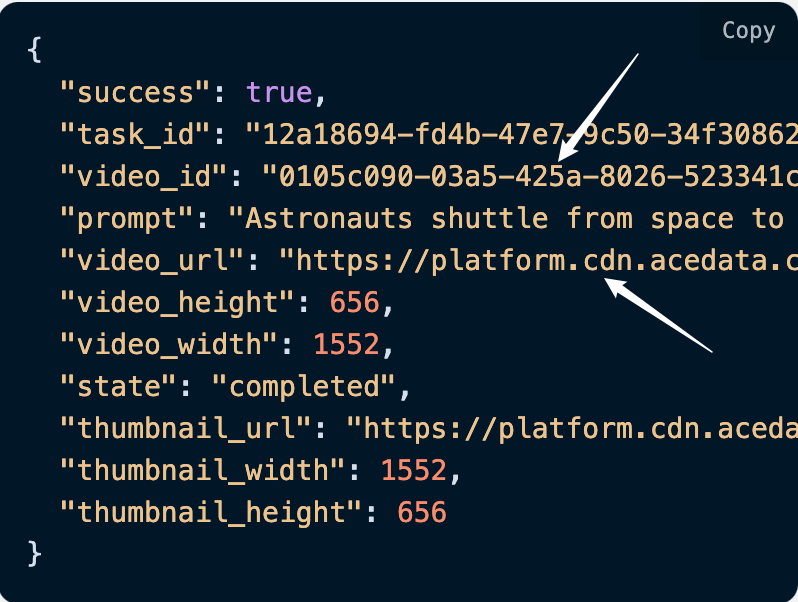
At this time, you can see that the video ID is:
"video_id": "0105c090-03a5-425a-8026-523341cd575b",
"video_url": "https://platform.cdn.acedata.cloud/luma/12a18694-fd4b-47e7-9c50-34f30862cff6.mp4"
Note that the
video_idandvideo_urlhere are the ID and video link of the generated video. If you do not know how to generate a video, you can refer to the basic usage above to generate a video.
To continue generating a video, you must upload the video link or the video ID. The following demonstrates using the video ID for extension. Next, we must enter keywords to customize the generated video, and the following content can be specified:
- action: The behavior of extending the video at this time, which should be
extendhere. - prompt: The keywords for the video that needs to be extended.
- video_url: The link of the video that needs to be extended.
- video_id: The unique ID of the video that needs to be extended.
- end_image_url: The image link of the last frame that can be specified for the extended video, an optional parameter.
The example is filled in as follows:
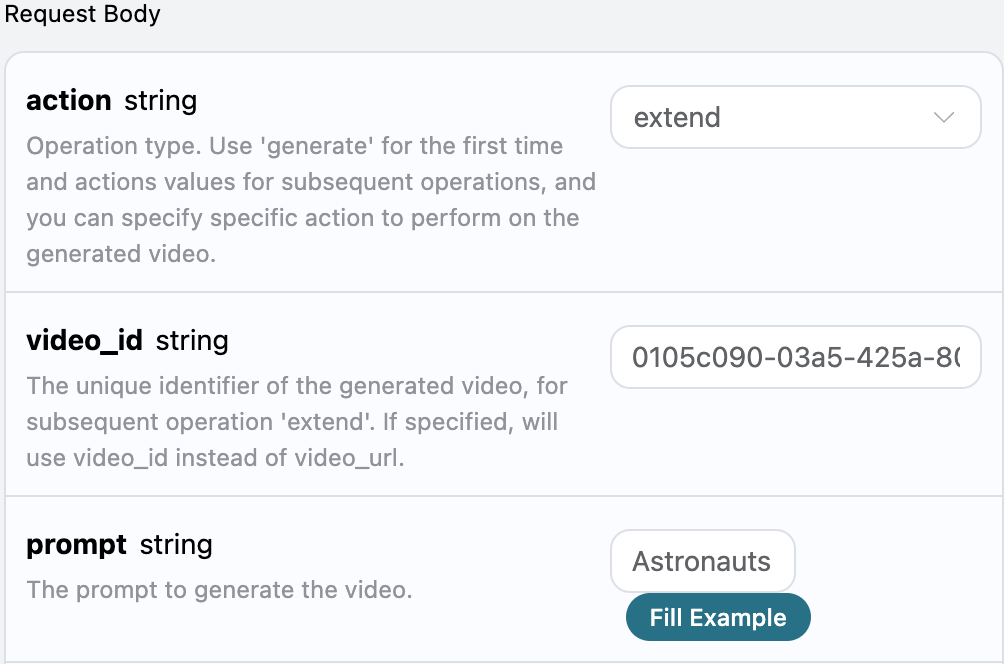
After filling it in, the code is automatically generated as follows:
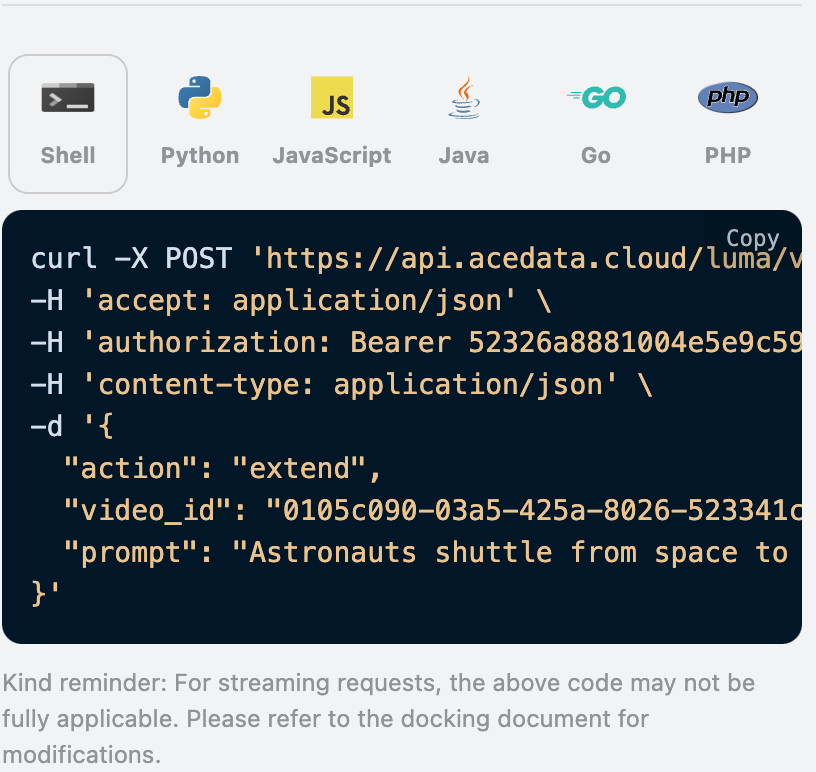
Corresponding Python code:
import requests

url = "https://api.qiyaov.com/luma/videos"

headers = {
    "accept": "application/json",
    "authorization": "Bearer {token}",
    "content-type": "application/json"
}

payload = {
    "action": "extend",
    "video_id": "0105c090-03a5-425a-8026-523341cd575b",
    "prompt": "Astronauts shuttle from space to volcano"
}

response = requests.post(url, json=payload, headers=headers)
print(response.text)
Click Run, and you can find that a result will be obtained as follows:
{
  "success": true,
  "task_id": "c6e529d1-a06d-4c12-91b2-c855135131c3",
  "video_id": "36908c49-c2bb-4a11-bd5a-b8512b004818",
  "prompt": "Astronauts shuttle from space to volcano",
  "video_url": "https://platform.cdn.acedata.cloud/luma/c6e529d1-a06d-4c12-91b2-c855135131c3.mp4",
  "video_height": 656,
  "video_width": 1552,
  "state": "completed",
  "thumbnail_url": "https://platform.cdn.acedata.cloud/luma/c6e529d1-a06d-4c12-91b2-c855135131c3.jpg",
  "thumbnail_width": 1552,
  "thumbnail_height": 656
}
It can be seen that this video is extended based on the video that needs to be extended. The result content is consistent with the above, which also implements the continued generation feature for songs.
Of course, we can also specify the video link for extension generation. Fill in the following information:
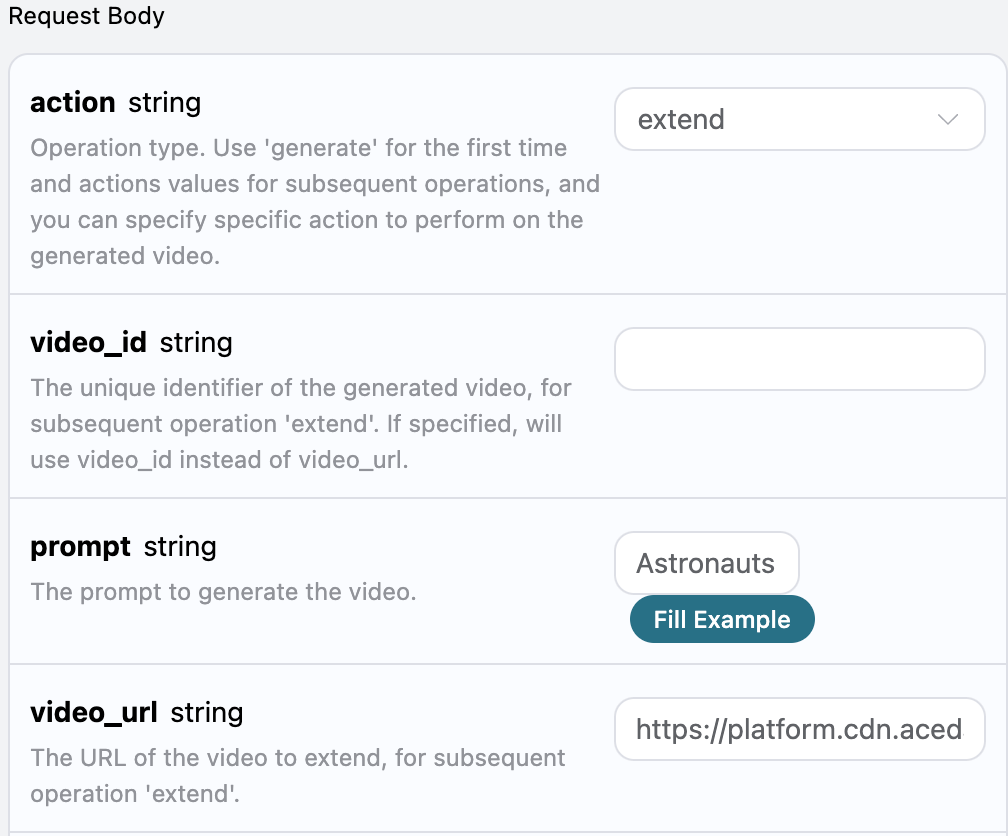
After running, the following result is obtained:
{
  "success": true,
  "task_id": "1dcb5902-a7be-4b77-ba5d-dd8ec82b26ca",
  "video_id": "f0187dc2-339f-4a08-a435-c3a3341f620a",
  "prompt": "Astronauts shuttle from space to volcano",
  "video_url": "https://platform.cdn.acedata.cloud/luma/1dcb5902-a7be-4b77-ba5d-dd8ec82b26ca.mp4",
  "video_height": 656,
  "video_width": 1552,
  "state": "completed",
  "thumbnail_url": "https://platform.cdn.acedata.cloud/luma/1dcb5902-a7be-4b77-ba5d-dd8ec82b26ca.jpg",
  "thumbnail_width": 1552,
  "thumbnail_height": 656
}
According to the result, it can be seen that the video extension feature can also be implemented based on the video link.
Finally, we can also specify a last-frame image in the extended video for extension. Below is the last-frame image information:
Next, add the last-frame image information based on the above. The details are as follows:
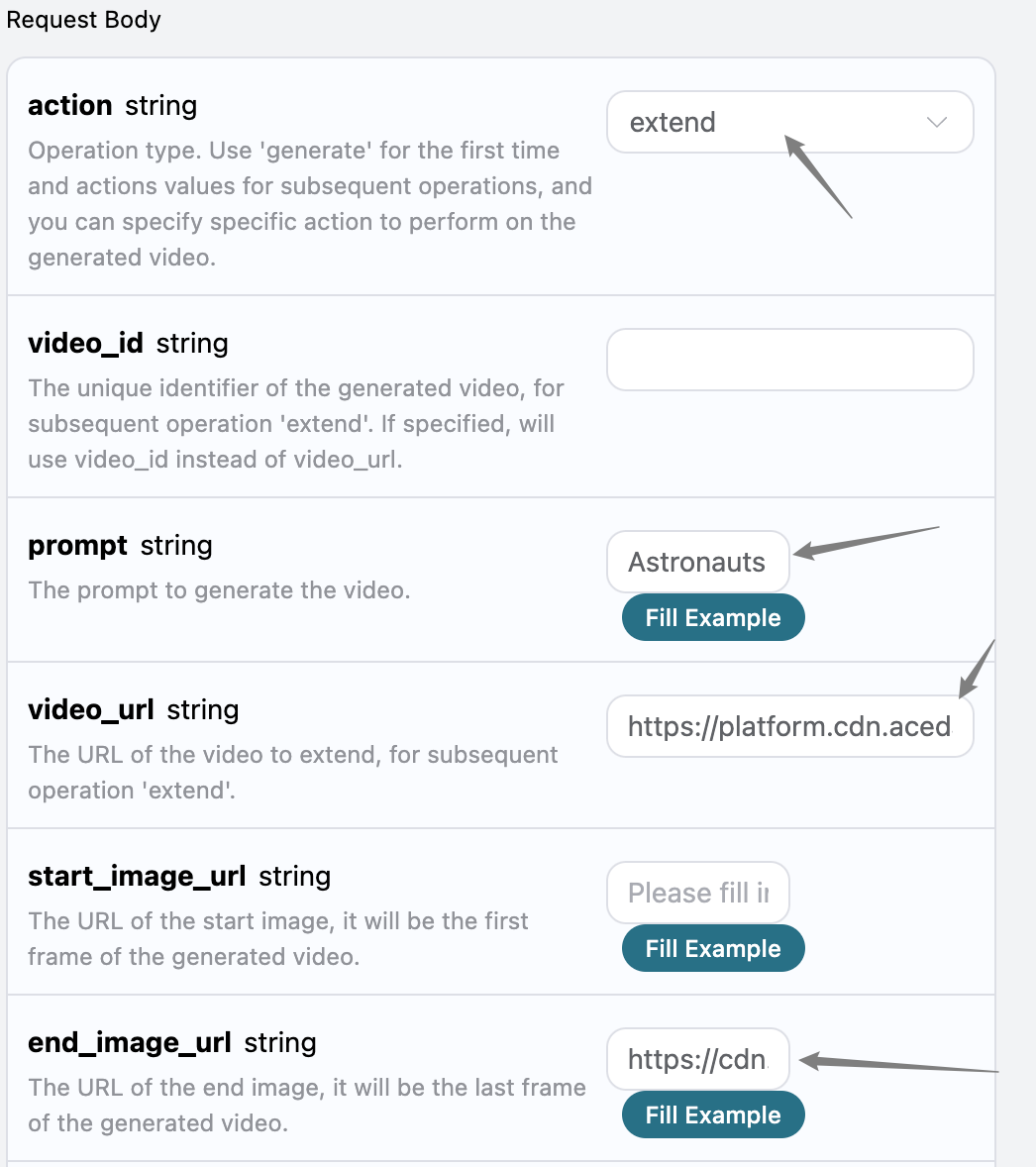
After clicking Run, the following information is obtained:
{
  "success": true,
  "task_id": "b816b2b4-c345-4673-9e19-83e91f91b643",
  "video_id": "c5400053-63e6-4206-8082-31cf9dd1e7ed",
  "prompt": "Astronauts shuttle from space to volcano",
  "video_url": "https://platform.cdn.acedata.cloud/luma/b816b2b4-c345-4673-9e19-83e91f91b643.mp4",
  "video_height": 656,
  "video_width": 1552,
  "state": "completed",
  "thumbnail_url": "https://platform.cdn.acedata.cloud/luma/b816b2b4-c345-4673-9e19-83e91f91b643.jpg",
  "thumbnail_width": 1552,
  "thumbnail_height": 656
}
It can be seen that, based on extending the video above, a last-frame image can also be specified for extension.
¶ Asynchronous Callback
Since Luma takes a relatively long time to generate videos, approximately 1–2 minutes, if the API does not respond for a long time, the HTTP request will remain connected, resulting in additional system resource consumption. Therefore, this API also provides support for asynchronous callbacks.
The overall process is: when the client initiates a request, it additionally specifies a callback_url field. After the client initiates the API request, the API will immediately return a result containing a task_id field, which represents the current task ID. When the task is completed, the result of the generated music will be sent via POST JSON to the callback_url specified by the client, which also includes the task_id field, so the task result can be associated through the ID.
Below, we will learn how to operate it specifically through an example.
First, a Webhook callback is a service that can receive HTTP requests. Developers should replace it with the URL of their own HTTP server. For convenience of demonstration, we use a public Webhook sample website https://webhook.site/. Opening this website will provide a Webhook URL, as shown in the figure:
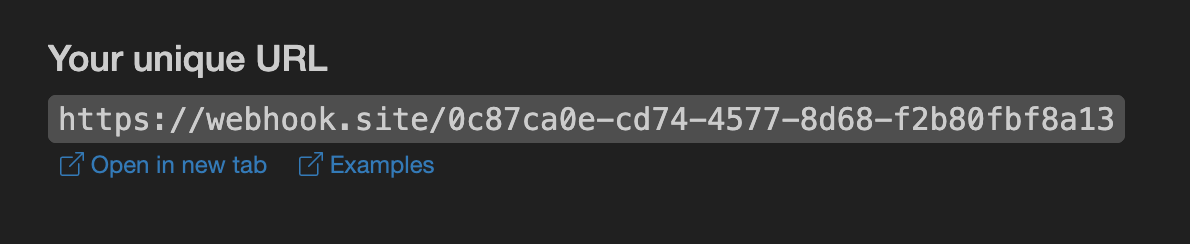
Copy this URL, and it can be used as a Webhook. The example here is https://webhook.site/0c87ca0e-cd74-4577-8d68-f2b80fbf8a13.
Next, we can set the field callback_url to the Webhook URL above, and fill in prompt at the same time, as shown in the figure:
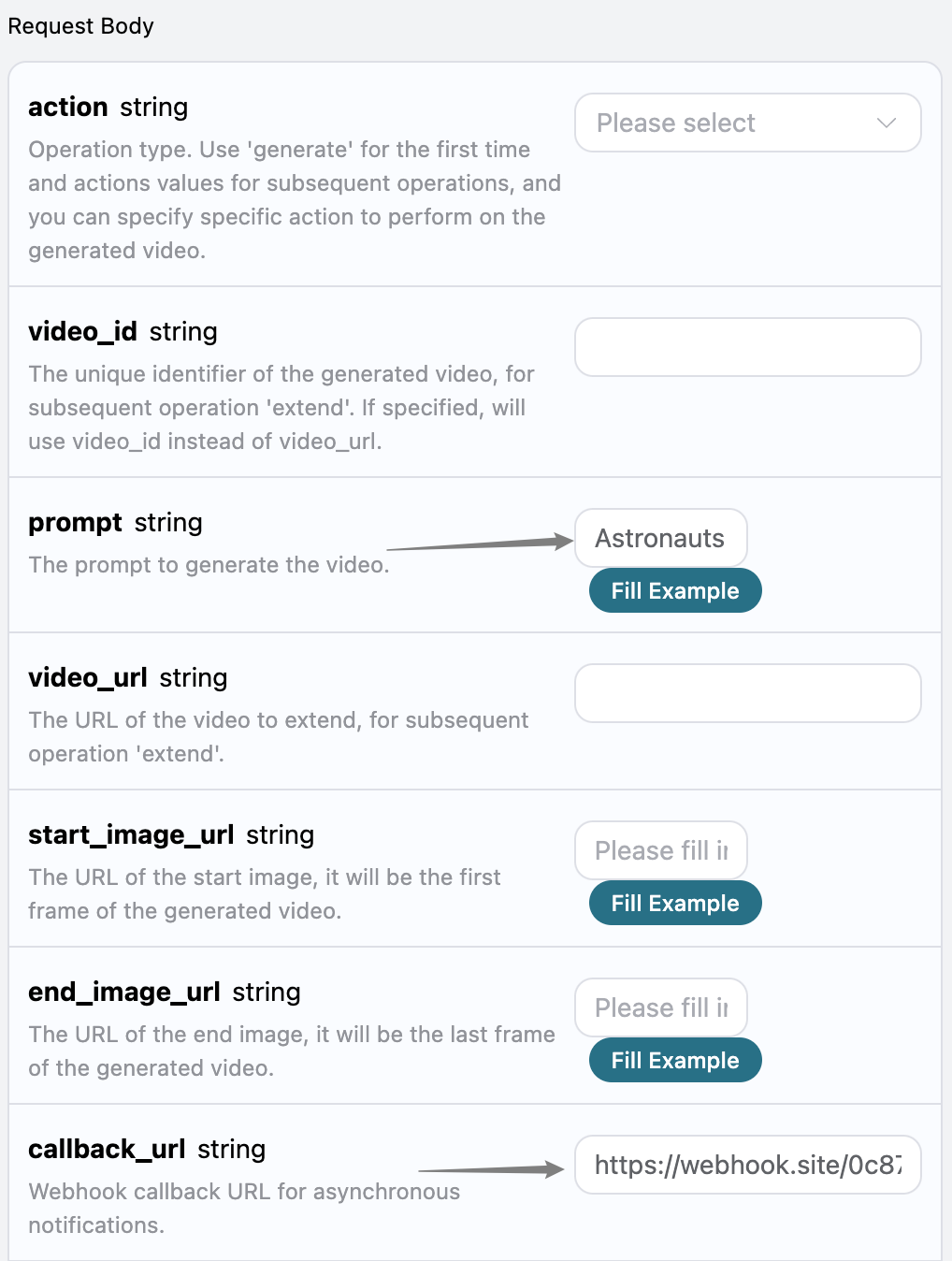
Click Run, and you can see that a result is obtained immediately, as follows:
{
  "task_id": "732f8282-7cf8-401c-95f2-42c33aa079a6"
}
After waiting for a moment, we can observe the result of the generated song at https://webhook.site/0c87ca0e-cd74-4577-8d68-f2b80fbf8a13, as shown in the figure:
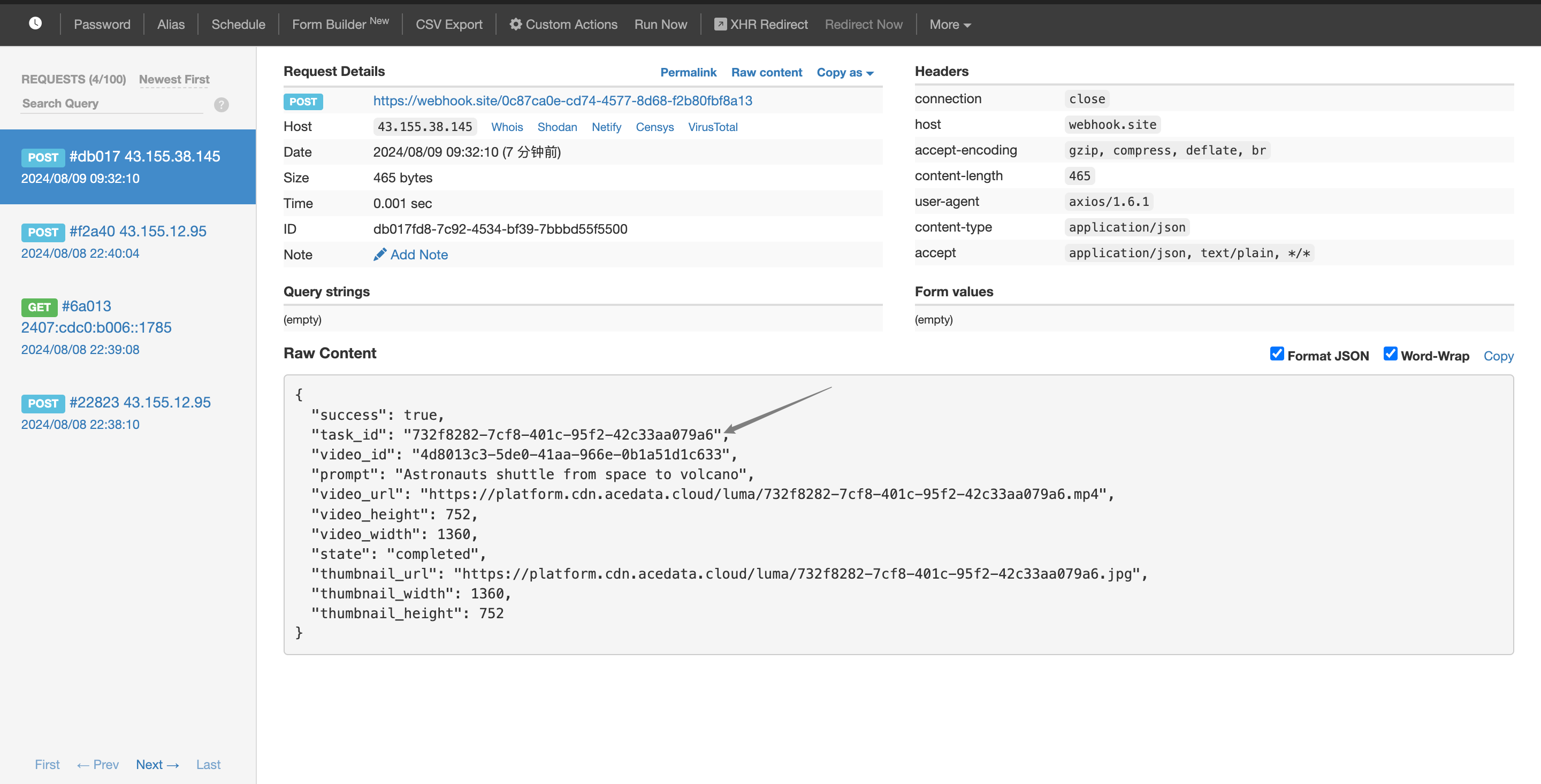
The content is as follows:
{
    "success": true,
    "task_id": "732f8282-7cf8-401c-95f2-42c33aa079a6",
    "video_id": "4d8013c3-5de0-41aa-966e-0b1a51d1c633",
    "prompt": "Astronauts shuttle from space to volcano",
    "video_url": "https://platform.cdn.acedata.cloud/luma/732f8282-7cf8-401c-95f2-42c33aa079a6.mp4",
    "video_height": 752,
    "video_width": 1360,
    "state": "completed",
    "thumbnail_url": "https://platform.cdn.acedata.cloud/luma/732f8282-7cf8-401c-95f2-42c33aa079a6.jpg",
    "thumbnail_width": 1360,
    "thumbnail_height": 752
}
You can see that there is a task_id field in the result. The other fields are similar to those above, and task association can be achieved through this field.